
Bridge mode lets a UE app use serial ports over WebSocket through the free companion app UniversalSerial Bridge, which runs on the PC the serial devices are connected to (v1.4.0 and later).
Bridge mode enables configurations like these:
- Keep the serial devices connected to one PC and use them from a UE app running on another machine
- Use serial ports from Android / iOS UE apps (on mobile, Bridge mode is the only mode available)
flowchart LR
  UE["UE app<br/>Windows / Mac / Linux<br/>Android / iOS"] -- "WebSocket (LAN)" --> BR["UniversalSerial Bridge<br/>Windows / Mac / Linux"]
  BR -- "Serial" --> DEV["Arduino / microcontroller"]
On desktop platforms (Windows / Mac / Linux), Direct mode — where the UE app talks to the OS serial API directly — remains the default. Switching to Bridge mode is a settings-only change: the Blueprint setup (Serial Port Manager, Initialize, Open, and the events) is the same in both modes.
Setup
1. Get the Bridge app
Download the distribution for the PC that will run the Bridge (Windows / Mac / Linux) from the download page. The Bridge app is free.
2. Start the Bridge
Start UniversalSerial Bridge on the PC the serial device is connected to. The server starts automatically on launch and listens on 0.0.0.0:8765 by default. The window lists this PC’s LAN IP addresses; pick one that the machine running your UE app can reach.
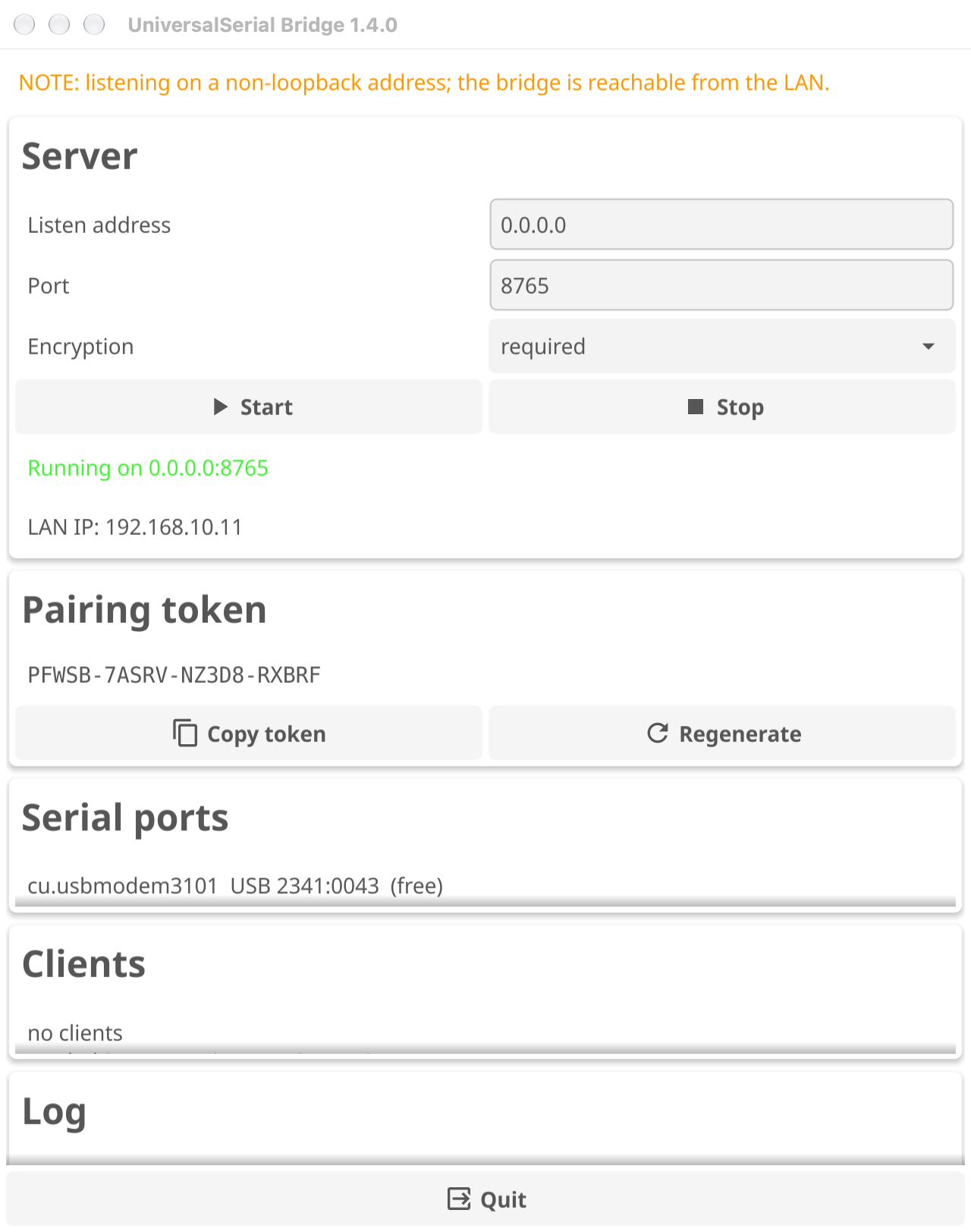
Both machines are expected to be on the same network. To use it over the Internet, set up a VPN or an equivalent route from the UE app side to the Bridge address first.
3. Check the pairing token
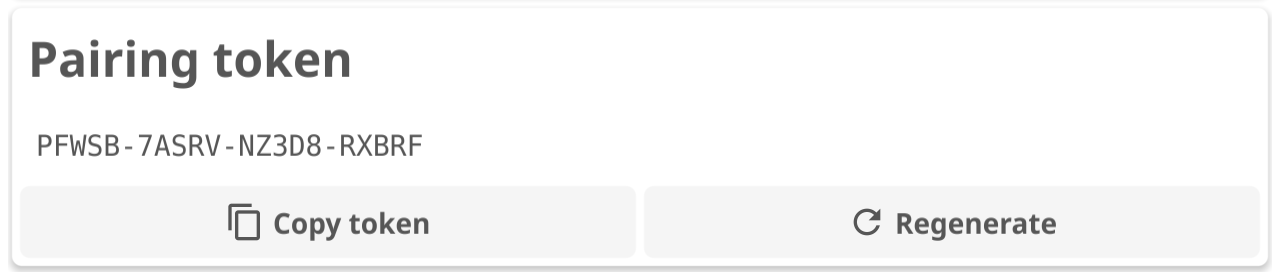
Copy the pairing token shown in the Bridge window (copy button). The token persists across Bridge restarts and can be regenerated from the Bridge UI. Connections whose token does not match are rejected.
4. Configure the UE side
Open Project Settings > Plugins > UniversalSerial Bridge and set the following.
| Setting | Value |
|---|---|
| Connection Mode | Bridge |
| Bridge Host | IP address of the PC running the Bridge (127.0.0.1 when it runs on the same PC) |
| Bridge Port | Bridge listen port (default 8765) |
| Bridge Token | The pairing token copied in step 3 |
| Bridge Encryption | The same value as the Bridge app encryption setting (default Required) |
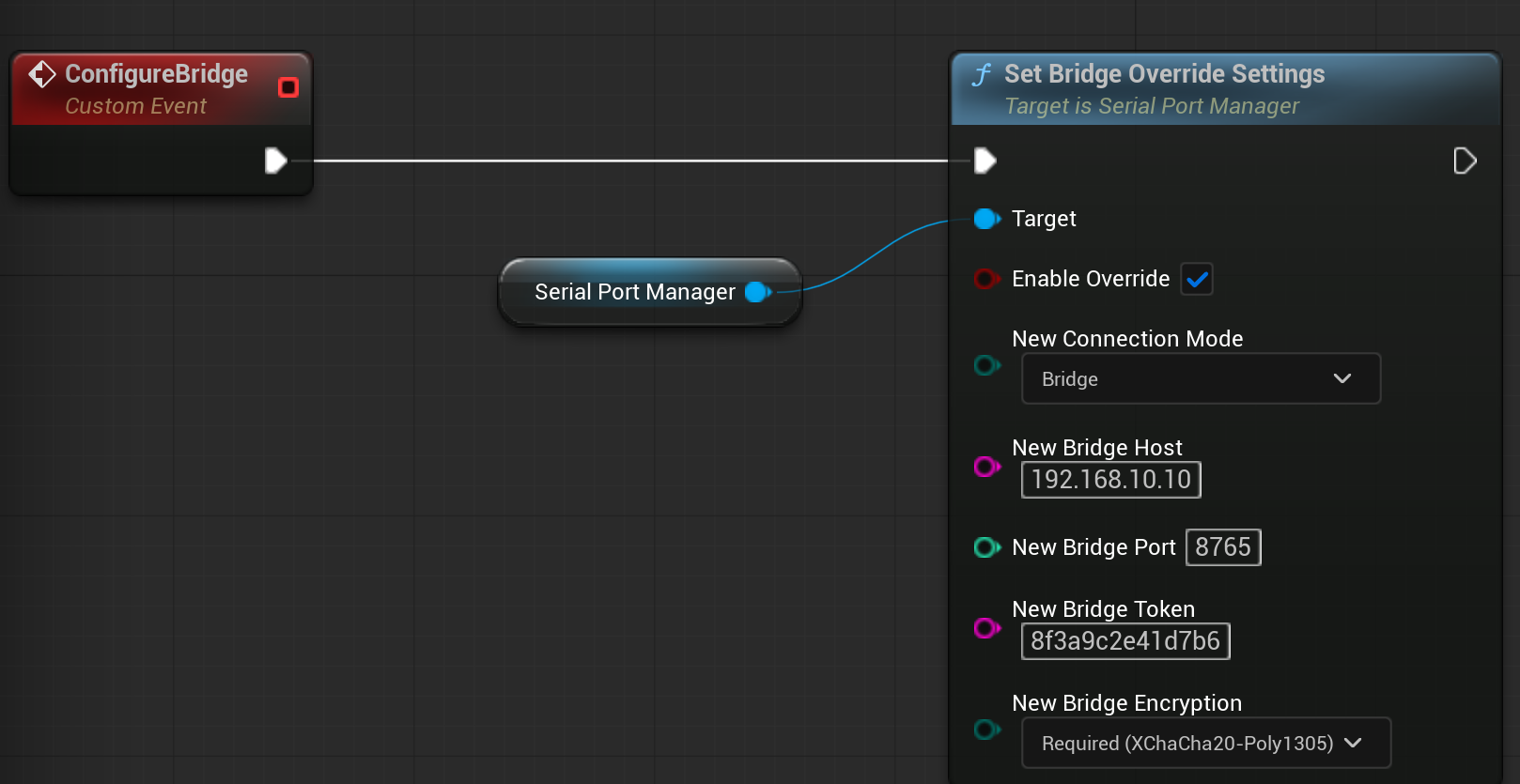
Each Serial Port Manager can override these project settings by enabling Override Bridge Settings in its Details panel. Use it when different managers need different connection targets.
5. Pick the port and start communicating
Get Available Serial Ports returns the ports of the PC running the Bridge, named as that PC’s OS names them (COM3 on Windows, cu.usbmodem… on Mac, /dev/ttyACM0 on Linux, and so on). Everything after that — Initialize and Open, receiving events, and Close — works exactly like Direct mode.
Using it from Android / iOS
Starting with v1.4.0, UniversalSerial works in UE apps on Android and iOS. Mobile operating systems have no serial API, so on mobile the plugin always runs in Bridge mode (even if Direct mode is selected, Bridge mode takes effect).
The preparation is the same as on desktop: start the Bridge, check the token, and enter the Bridge IP, port, and token in the project settings. Then connect the device to the same network (Wi-Fi) as the Bridge and launch the app.
Android
No extra configuration is required. The INTERNET permission needed for communication is granted by Unreal Engine by default. Verified on a real device.
iOS
iOS requires the OS’s permission to connect to the local network. Check these two points:
-
Set
NSLocalNetworkUsageDescription: Add an entry like the following to Platform: iOS > Build > Additional Plist Data in the project settings.AdditionalPlistData="<key>NSLocalNetworkUsageDescription</key><string>Connects to the UniversalSerial Bridge on the local network to operate serial devices.</string>"Without this key, the permission dialog never appears and connections fail silently.
-
First-launch local network permission: The first time the app connects, iOS shows an “allow to connect to devices on your local network” dialog. Allow it. The connection does not complete until you do. After granting, the dialog does not appear again.
If you denied it by mistake, enable “Local Network” for the app in the iOS Settings app and the app will be able to connect again.
Using it from a packaged Mac app
UE’s packaged Mac apps (.app) are signed with App Sandbox enabled. Bridge mode’s outbound network connections require the com.apple.security.network.client entitlement; without it, connections are rejected with the SE_HOST_NOT_FOUND error.
Place a <ProjectName>-<Configuration>.entitlements file under Config/Mac/ of the project you package (example: UniversalSerialPrj-Shipping.entitlements) with the entitlement added:
<?xml version="1.0" encoding="UTF-8"?>
<!DOCTYPE plist PUBLIC "-//Apple//DTD PLIST 1.0//EN" "http://www.apple.com/DTDs/PropertyList-1.0.dtd">
<plist version="1.0">
<dict>
	<key>com.apple.security.app-sandbox</key>
	<true/>
	<key>com.apple.security.network.client</key>
	<true/>
	<key>com.apple.security.device.serial</key>
	<true/>
	<key>com.apple.security.device.usb</key>
	<true/>
</dict>
</plist>
This does not affect running in the editor (PIE) or Direct mode. Builds that also use Direct mode still need device.serial / device.usb for serial device access.
Choosing the encryption mode
Communication between the Bridge and the UE app is encrypted at the application layer by default. Choose one of the following modes in the Bridge app GUI and in the UE project settings (Bridge Encryption).
| Mode | Behavior |
|---|---|
Required (default) |
Encrypts the communication. The pairing token never travels in the clear. Safe by default, even on a LAN |
None |
Communicates without encryption. The pairing token travels in the clear. Intended for debugging on a closed LAN where you need plaintext traffic |
Note the following:
- Both ends must use the same mode. If they differ, the connection is rejected instead of being adjusted automatically (the reason appears in the Bridge log and as a UE-side error)
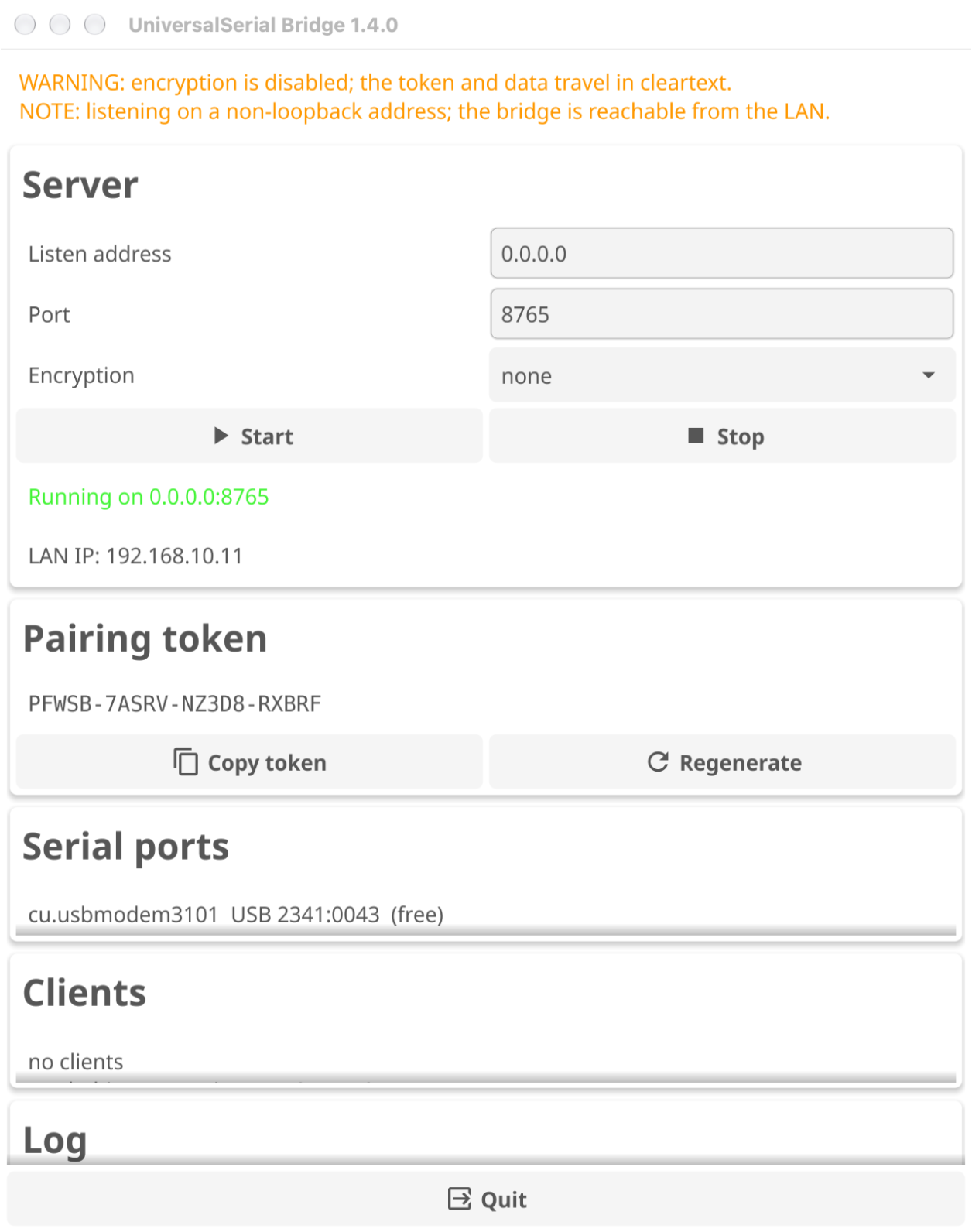
- While
Noneis selected, the Bridge window shows a warning that it is listening without encryption
Limitations and notes
- Bridge mode assumes both ends are on the same network. Using it over the Internet requires a VPN or an equivalent route to the Bridge address
- Port exclusivity works the same as Direct mode: one port cannot be opened by multiple sessions at the same time, whether direct or through the Bridge
- When the connection drops, the existing
DisconnectedandErrorevents fire. Sessions are not reopened automatically, so reconnect from your app as needed - The Bridge listens on
0.0.0.0(all LAN interfaces) by default. Check your firewall configuration as appropriate for your network
See the UniversalSerial section of the FAQ for common questions about Bridge mode.