
This page walks through loading a YAML string, reading values out of it, then creating new YAML and printing it as a string.
Prerequisites
- Setup is complete and EasyYamlParser is enabled in the project.
- You can create Blueprint variables and connect nodes.
Blueprint outline
The flow built in this quick start is:
- Parse a YAML string with
Load Yaml From Stringand store theYaml Objectin a variable. - Read values with
Read StringandRead Int, and show them withPrint String. - Create new YAML with
Create Empty Yaml Objectand write values with the Write nodes. - Convert the result to a string with
Yaml To Stringand check it.
1. Create an Actor Blueprint
In the Content Browser, create a Blueprint Class with Actor as its parent. Name it BP_YamlSample.
Open the Event Graph and lay out nodes starting from Event BeginPlay.
2. Create a Yaml Object with Load Yaml From String
Create a Yaml Object from a YAML string. Add a Load Yaml From String node and enter the following YAML into the Yaml String pin.
player:
  name: Hero
  level: 10
Insert a Branch node so the following steps run only when Success is true. On failure, print the Error Message with Print String. The message carries the line and column numbers of the syntax error, which tells you exactly which line of the YAML to fix.
Store the returned Yaml Object in a variable. Create a variable LoadedYaml (type: Yaml Object struct) and save it with a SET node. The Read nodes take this Yaml Object pin as their input.
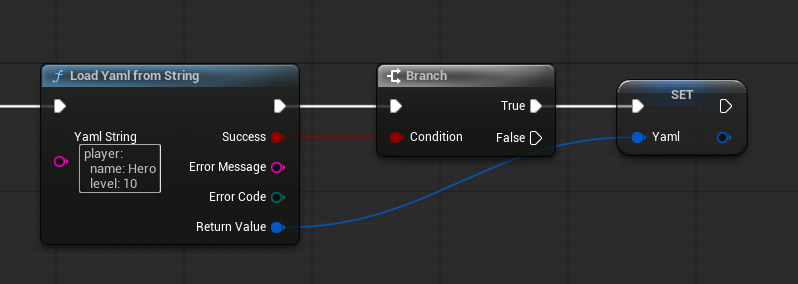
3. Read the player name with Read String
Add a Read String node with the following inputs.
| Pin | Value |
|---|---|
| Yaml Object | LoadedYaml |
| Access String | player.name |
| Default Value | Unknown |
The access string player.name points at name inside the player map of the YAML. When the path is missing — or the value is not a string — the Default Value (Unknown) is returned instead.
4. Read the level with Read Int and print it
Add a Read Int node with Access String set to player.level and Default Value set to 1. Connect LoadedYaml to its Yaml Object pin as well.
Combine both results for display. Use an Append node to join the Read String result and the Read Int result converted with To String, then feed it into Print String.
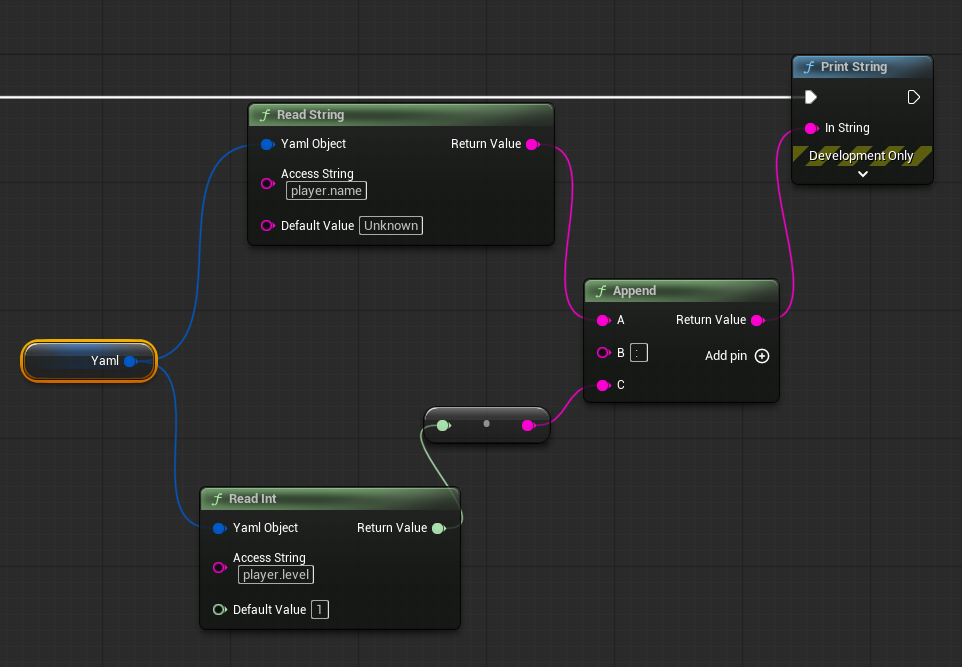
When you play, the output log shows something like Hero 10. If it does not, see When something goes wrong.
5. Create YAML with Create Empty Yaml Object and write to it
Next, create new YAML. Store the return value of Create Empty Yaml Object in a variable NewYaml.
Write values with the Write nodes. Each execution adds a value to the Yaml Object, so run them in order with a Sequence node.
| Node | Access String | Value |
|---|---|---|
Write Int |
score |
1000 |
Write Float |
time |
45.5 |
Write String |
playerName |
Hero |
Write Bool |
isActive |
checked |
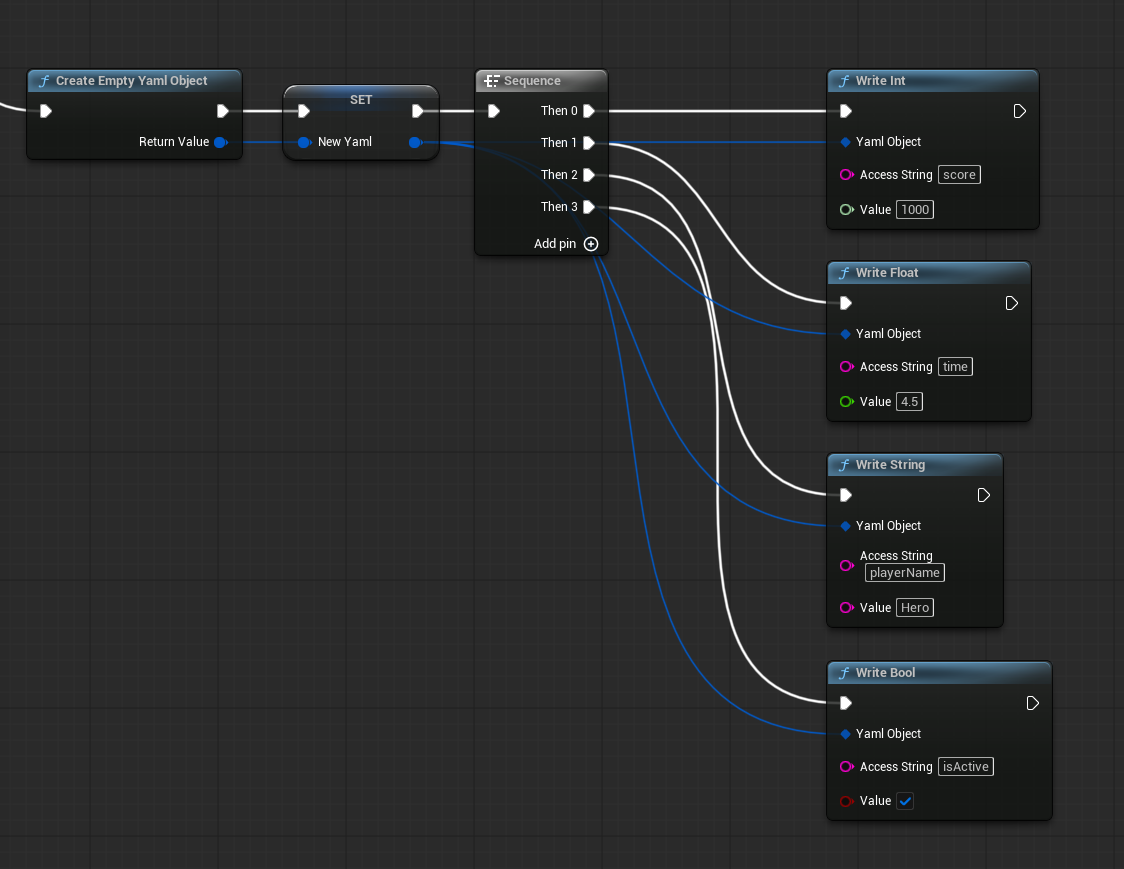
When you specify a hierarchical access string such as player.stats.level, the intermediate maps are created automatically if they do not exist.
6. Check the content with Yaml To String
Convert the content of NewYaml to a string with the Yaml To String node. Because YAML expresses hierarchy with indentation, the output is always formatted with line breaks and indentation.
Printing the result with Print String shows the following YAML string.
score: 1000
time: 45.5
playerName: Hero
isActive: true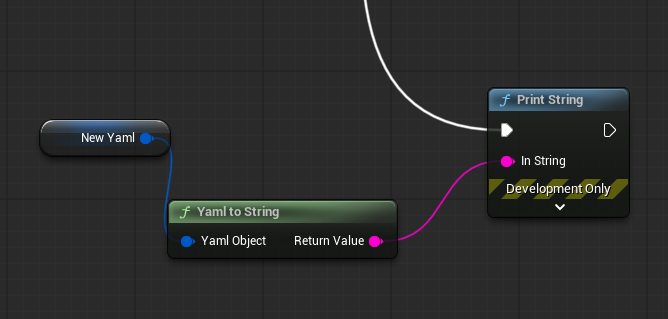
To save it to a file, use the Save Yaml To File node. See Creating save data in the Use Cases page.
When something goes wrong
| Symptom | What to check |
|---|---|
Success stays false |
Whether Yaml String is valid YAML (indentation depth, whitespace after colons, quoting) |
Error Message reports a line number |
Check the line at the line X column Y position included in the message |
Error Message says File not found |
The File Path and Is Absolute pins of Load Yaml From File (relative paths are Content-based) |
| Values keep coming back as the default | The spelling and hierarchy of the access string (is player.name written as playerName?) |
Related tutorials
- How to write access strings (Use Cases) — paths including sequences and multi-dimensional sequences
- Loading a configuration file (Use Cases) — a file loading example
- Blueprint API Reference — the inputs/outputs of every node