This page explains how to add OmniGRPC to your project and prepare the assets used for communication in Blueprint. .proto import works the same in both editions. Importing from Server Reflection is available in the Full Edition.
Install the plugin
- From the Epic Games Launcher, install the OmniGRPC version that matches your Unreal Engine version into the target Engine or project.
- Start Unreal Editor and enable Edit → Plugins → Networking → OmniGRPC.
- If the Editor asks you to restart, restart it.
The plugin includes the libraries required for communication. You do not need to install additional software or build C++ libraries.
To move from the Free Edition to the Full Edition, close the Editor and replace the plugin. Both editions use the same plugin name, so do not enable them at the same time.
The Full Edition lets you use the same .proto files and Blueprints on Windows, Linux, macOS, Android, and iOS. You do not need to rewrite communication logic for each platform. The Free Edition supports only Windows (Win64).

Generate Blueprint assets from a .proto file
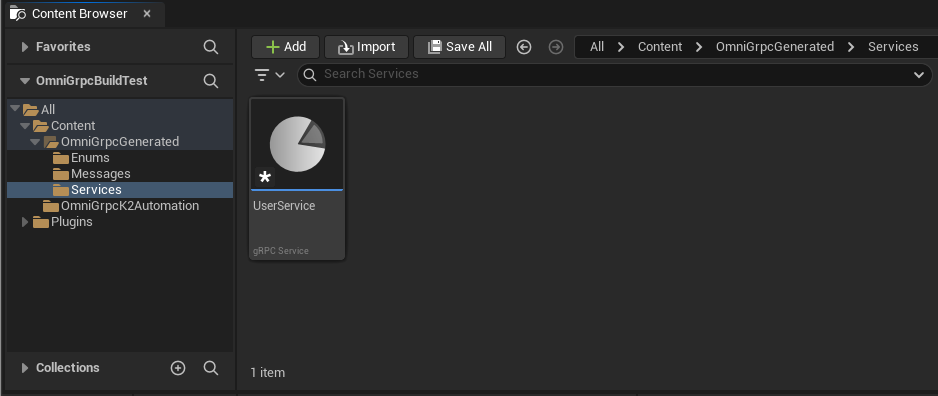
Drag and drop a .proto file into the Content Browser. After importing, confirm that the following assets were generated in the default output folder /Game/OmniGrpcGenerated/. The Importer’s Output Folder is the root of the generated assets.
Definition in the .proto file | Generated asset | Role in Blueprint |
|---|---|---|
message | User Defined Struct | Data sent to and received from the server |
enum | User Defined Enum | A field that selects a value from several choices |
service | OmniGrpc Service Asset | The list of server features you can call |
/Game/OmniGrpcGenerated/
├── Messages/
├── Enums/
└── Services/
Generated Struct names match the message names in the .proto file. For example, LoginRequest generates Messages/LoginRequest without an F prefix.
    flowchart TD
	  Proto[.proto file] --> Import[Import into Content Browser]
	  Import --> Message[message → Struct in Messages]
	  Import --> Enum[enum → Enum in Enums]
	  Import --> Service[service → Service Asset in Services]
	  Message --> Request[Create Request with a Make node]
	  Service --> Select[Set Service on the Call node]
	  Select --> Method[Choose Method Name in Details]
	  Method --> Typed[Request and Response types are resolved]
	  Request --> Typed
When the .proto file references another .proto file
If the .proto file you import references another .proto file, keep the original folder structure. The import fails when a referenced file cannot be found. If the import fails, the cause is written to the Unreal Editor Output Log.
When the Free Edition imports a .proto file with Streaming methods
The Free Edition can import .proto files that contain Streaming RPCs, such as Server Streaming, and generate their assets. However, the nodes that call the imported Streaming RPCs are available only in the Full Edition. The Service Asset description and the Unreal Editor log indicate that the Full Edition is required.
Generate assets from Server Reflection
Full Edition onlyIf the server supports a feature called Server Reflection, you can retrieve the information needed for communication from the server without a local .proto file. This feature is available only in the Full Edition.
- Right-click an empty area in the Content Browser.
- Choose Import from gRPC Reflection.
- Enter the destination Host and Port, Security, Service name, Output Folder, and Timeout.
- Click Import.
For the Service name, enter the fully qualified name including the package, such as acme.user.UserService. If you do not know the Service name, ask the server administrator. The import fails if Reflection is disabled on the server or if the connection settings are incorrect.
Image coming soon: Import from gRPC Reflection dialog
Image replacement marker
Show the Content Browser context menu and the dialog with Host / Port / Security / Service / Output Folder / Timeout filled in.
- Recommended filename
images/OmniGRPC/setup-reflection-import.png- Alt text
- Settings screen for generating a Service Asset from gRPC Server Reflection
Check the Service Asset
A Service Asset stores the list of features (Methods) that can be called on that server. Open each Method to see the Struct to send, the Struct to receive, and the communication method. In normal Blueprint work, you do not need to change any other internal information.
Image coming soon: UserService Service Asset
Image replacement marker
Open the UserService Asset generated from the latest main and capture the Method types and Request / Response Struct references for Login, WatchUsers, UploadUsers, and UserLookup. The screen should show that LoginRequest and LoginResponse have no F prefix. Replace the existing setup-service-asset.png, which uses old naming.
- Recommended filename
images/OmniGRPC/setup-service-asset-current.png- Alt text
- gRPC method list shown in an OmniGRPC Service Asset
Choose the Service and Method on a Call node
- Add the Call node that matches your communication method and set the Service Asset in the
Servicepin. - Select the node and open
gRPC → Method Namein the Details panel. - Choose the Method to call and check the Request and Response types.
| Call node | Methods available on UserService |
|---|---|
Call gRPC Unary | Login, GetUser, ListUsers, RetryTest, EchoMetadata |
Call gRPC Server Streaming | WatchUsers (Full Edition) |
Call gRPC Client Streaming | UploadUsers (Full Edition) |
Call gRPC Bidi Streaming | UserLookup (Full Edition) |
You do not need to type a Method name into a string pin. The candidates are filtered by the node’s communication method. If you change the Service, choose the Method again.
Passing the Service from a variable
Set the Service Asset as the default value of a Blueprint member variable, compile, and then connect a Get node. Because the asset can be identified at edit time, the Method candidates and send/receive types can be resolved.
Variables that are assigned only at runtime, or local variables, cannot identify the Service at edit time. If the candidates are empty, first set the asset directly in the Service pin and check.
Update the schema
When the original .proto file changes, right-click the generated Service Asset and run Regenerate from .proto. The Structs, Enums, and Service Assets are updated with the new content.
After regenerating, open the Blueprints that use the changed Structs or Service Asset and compile them. If data fields or Method names were removed or changed, node connections may be disconnected. Confirm that there are no errors and that input values have not unexpectedly reverted to their defaults.
To update assets generated from Reflection, run Reflection Import again with the same Service name.
Next steps
Use the user_service.proto included in the sample server package and follow the Quick Start to run a basic Unary RPC.